

Google Drive
Configure Google Drive as an external storage for your backups.
By default, Portabase stores backups on the local disk of the Dashboard server. For production environments, we strongly recommend using external storage to:
- Separate compute (Dashboard) from storage.
- Benefit from virtually unlimited capacity.
- Protect data if the Dashboard server is lost.
Creation of a new OAuth Client in the Google Cloud Console
Navigate to Google Cloud Console.
- Open the sidebar menu and go to API & Services > Credentials.
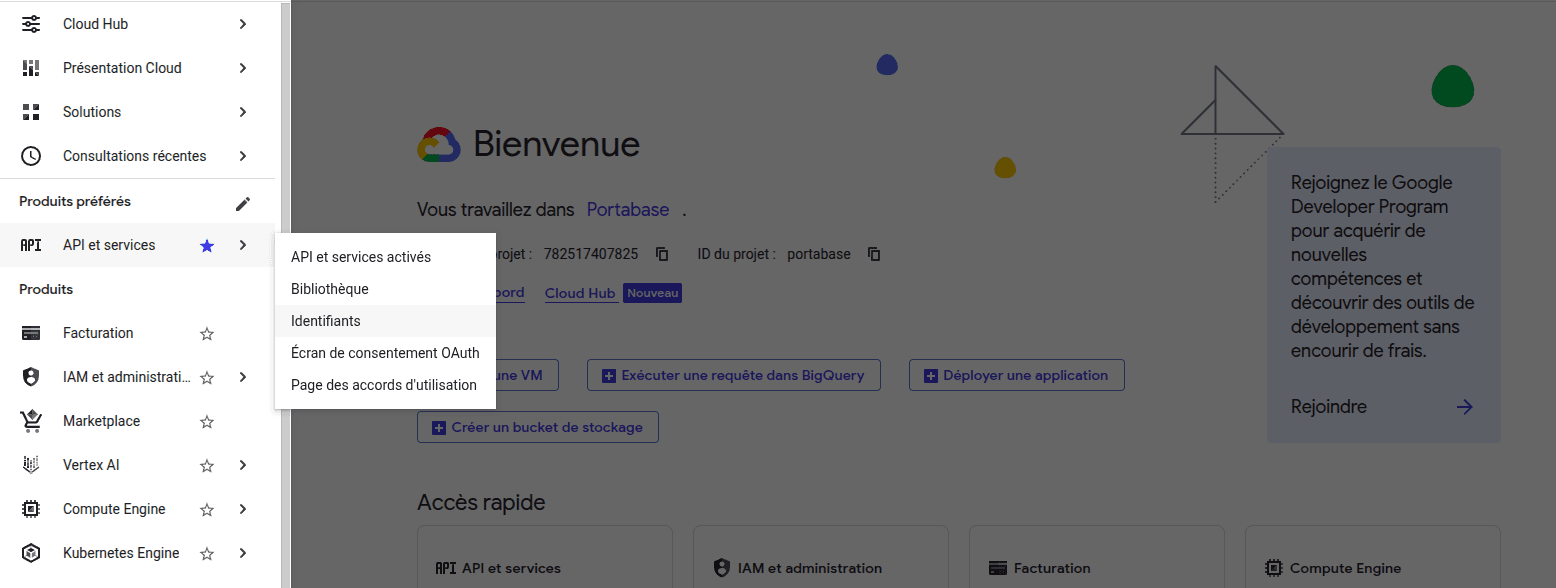
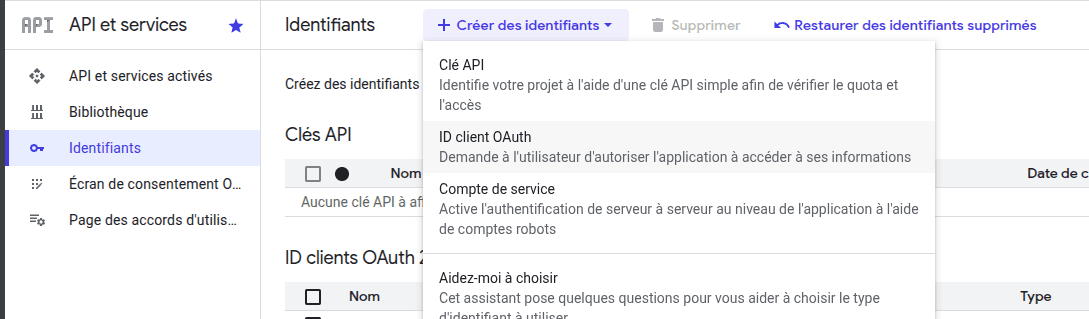
Click Create Credentials > OAuth Client ID.
Select Web Application as the application type and configure the Authorized JavaScript origins and Authorized redirect URIs according to your domain.
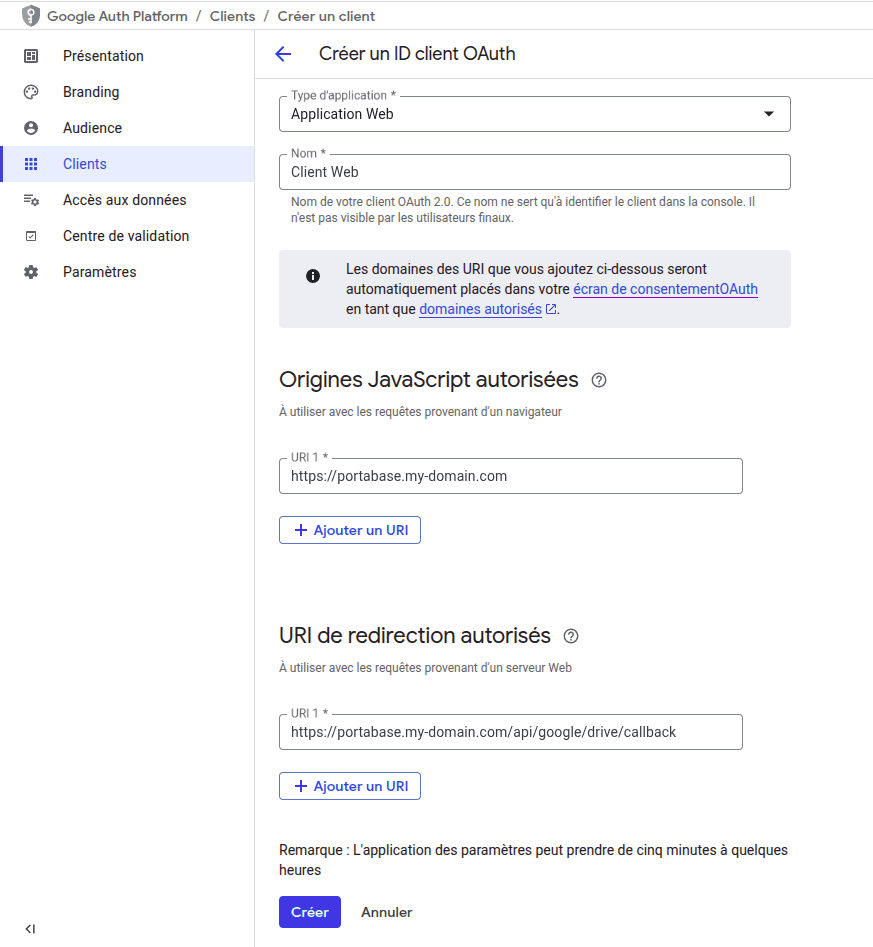
Click Create, then note the generated Client ID and Client Secret.
Configuration on the dashboard
In Storage > Channels, click on + Add Storage Channel and choose Google Drive.
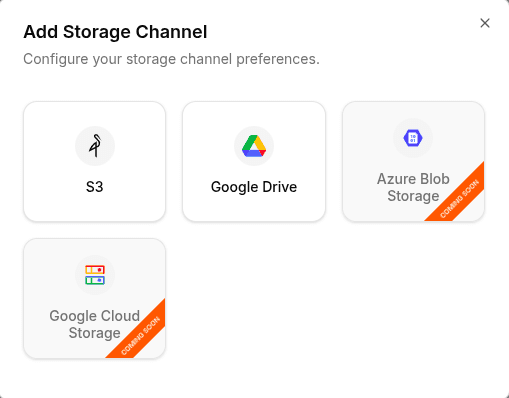
Enter the credentials previously generated in the Google Cloud Console.
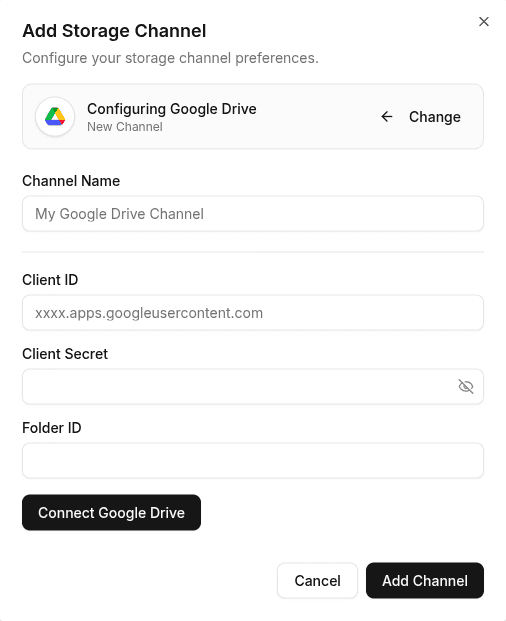
Click Connect Google Drive to initiate the OAuth 2.0 authentication flow.
Click Add Channel to finalize the configuration.