

Portabase DashboardAdvanced ConfigurationNotification
Slack
Receive backup notifications directly in a Slack channel.
Portabase allows you to send real-time notifications to a Slack channel when a backup succeeds or fails.
Configuration on Slack API
Create a Slack App
- Go to api.slack.com/apps.
- Click Create New App and select From scratch.
- Name your app (e.g., "Portabase Bot") and select your workspace.
Activate Incoming Webhooks
- In the left sidebar, click on Incoming Webhooks.
- Toggle the switch to On.
- Click the Add New Webhook to Workspace button at the bottom.
- Select the channel where you want notifications to appear and click Allow.
Copy the Webhook URL
You will see a URL that looks like this:
https://hooks.slack.com/services/T00000000/B00000000/XXXXXXXXXXXXXXXXXXXXXXXX
Copy this URL.
Configuration on the dashboard
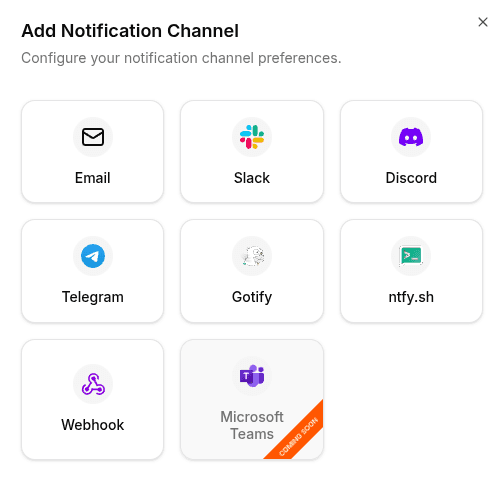
Go to Notifications > Channels, click on + Add Notification Channel, and choose Slack.
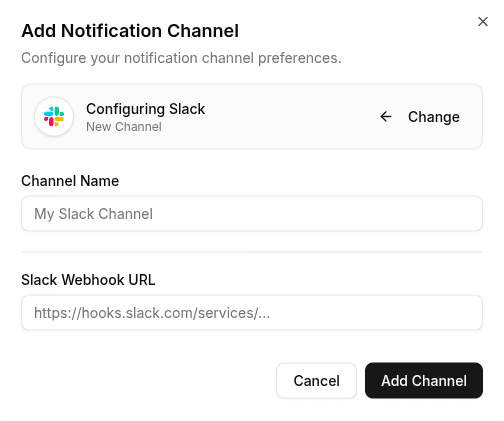
Enter the Slack webhook URL obtained earlier https://hooks.slack.com/services/... and click Add Channel.
To test the configuration, click the channel's edit icon, then click Test Channel. Verify that a test message appears in the selected Slack channel.